In the 2026 home version of the Excel Checkbook, the Rec column for reconciliation was updated to use an interactive checkbox. Previous versions of the checkbook featured a drop-down with choices of R, c and Split. In the interest of speedier interaction, that drop-down was changed to a checkbox, which only appears if you have Microsoft 365.
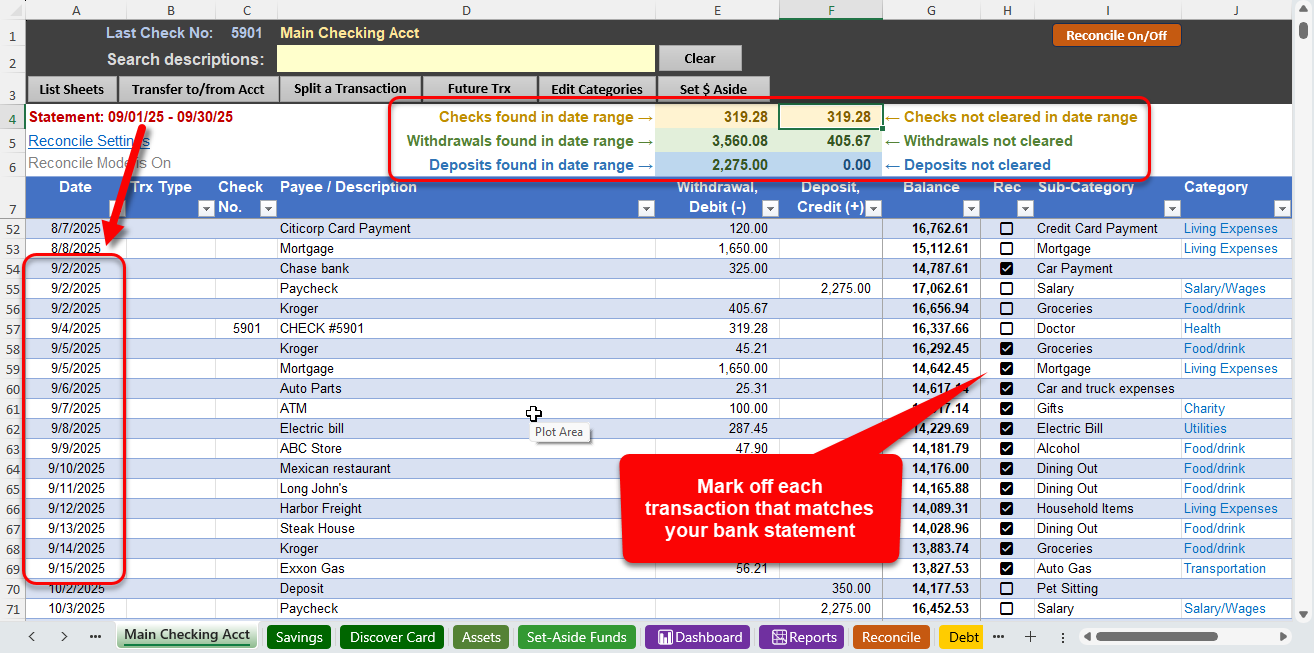
In older versions of Excel, you’ll typically see the word FALSE instead of a checkbox. For those with an older version of Excel, leave the word FALSE in that column. But during reconciliation, you can mark an entry as reconciled by putting any letter in the Rec column that you desire, e.g., R, c, X, anything really. The formulas will treat that the same as if you had the ability to click the checkbox to mark that entry as reconciled.
If you would prefer to have the original drop-down picker, do the following:
- Select the entire Rec column by positioning your mouse above the word “Rec“, making sure that your mouse turns into a black arrow that points down. Click, and it will select the entire column.
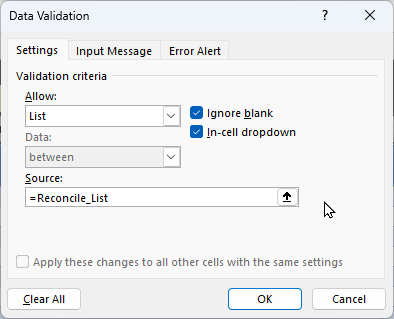
- Visit the Data menu and click on Data Validation…
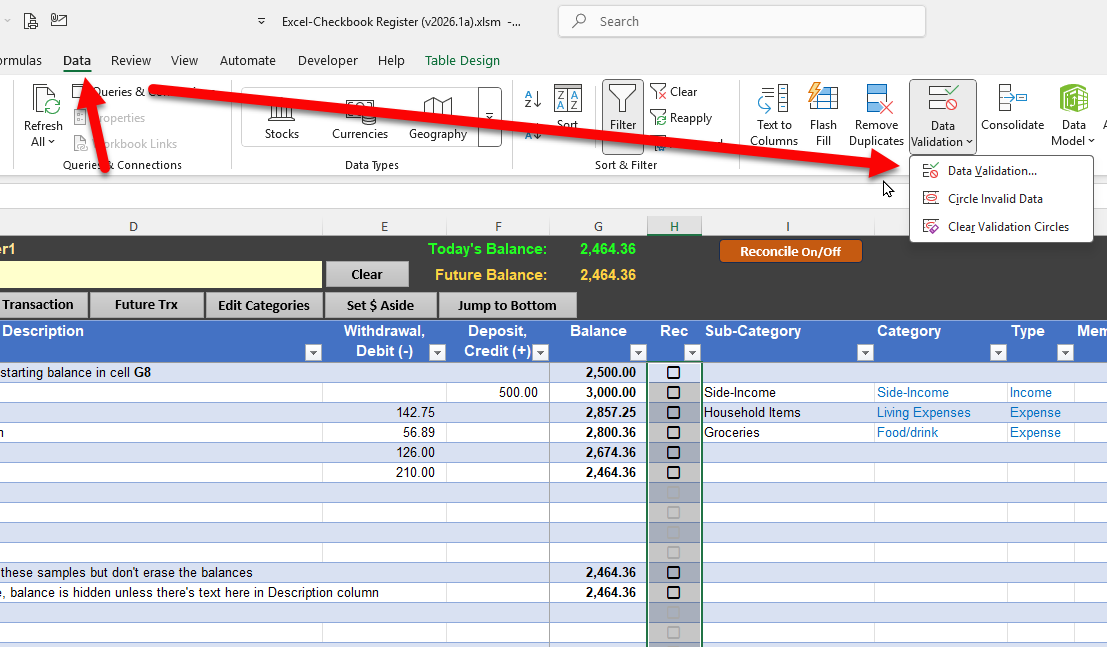
- Change the Allow option to be List, and set the Source to be:
=Reconcile_List - Click OK
Repeat this process on any other register worksheet that you’ll be using.
Discover more from Excel Checkbook
Subscribe to get the latest posts sent to your email.