I get a date-related error when I click to refresh the Dashboard. The error I see is: [dataformat.error] We couldn’t parse the input provided as a date value.
When this happens, there’s one or more entries in the date column in your register causing the issue. It could be some random text or a number instead of a valid date. You can use Excel’s filter feature to help find those odd entries. Note: you’ll need to do this on each register sheet until you find the entry (entries) that need correction.
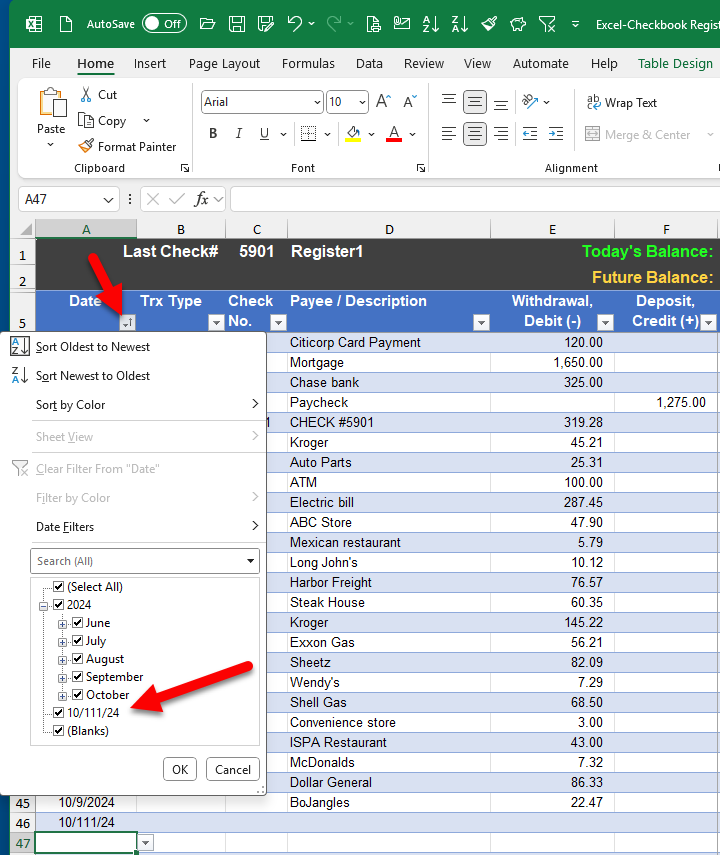
INSTRUCTIONS: Click the little down-arrow on the DATE column which will reveal a list of date filters. In my screenshot below (Figure 1), I have good valid dates and they are all grouped by year. But when you have entered a number or some random text in the date column of your register, it will show up as a separate filter choice. When you see that oddity, you can uncheck all of the valid date entries so that only your bad entry remains check marked; click OK, and then your bad entry should be the only transaction that appears in the register. You can then fix it, and re-visit that down-arrow on the DATE column and choose the “Clear Filter” choice so that all of your entries are once again visible. Repeat that process on your register sheets, and be sure to save your file before attempting to Refresh the dashboard.
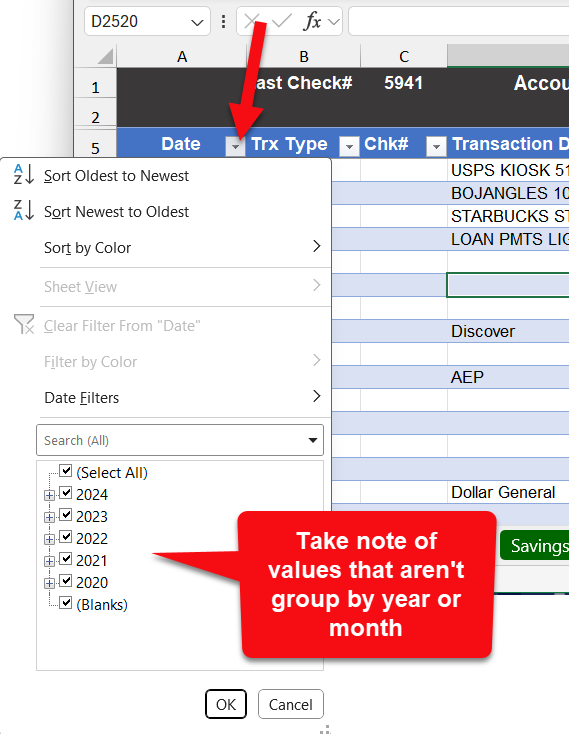
Example of an invalid date