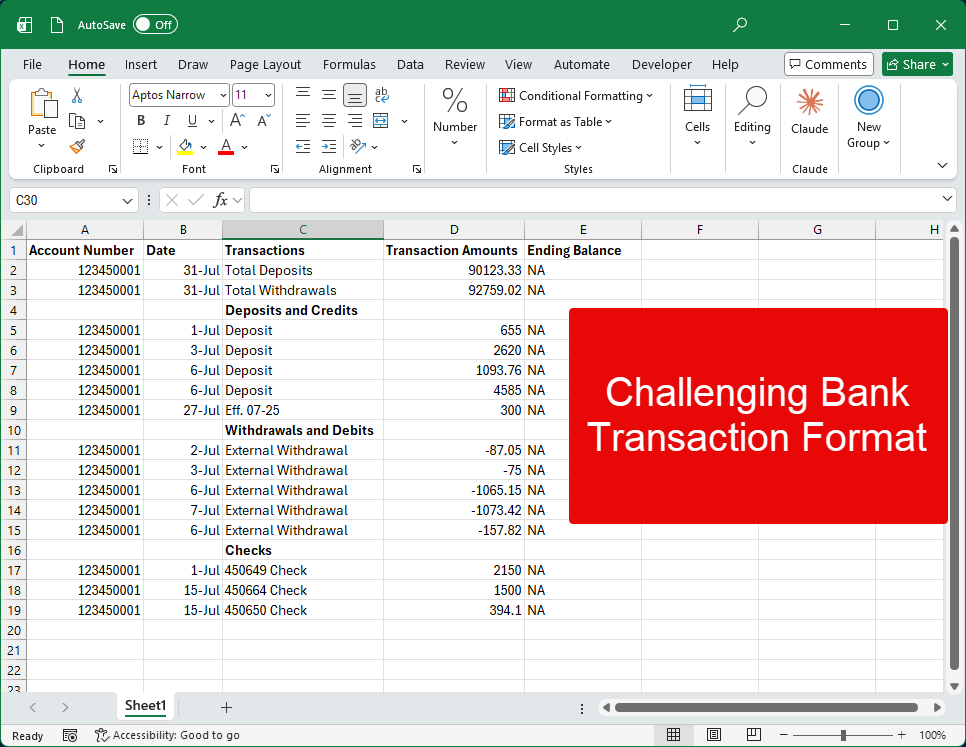
A customer recently shared that their bank had changed the format of transaction download (CSV) files, and it was proving very difficult to record a macro to automatically reformat it. Here’s a fictitious example. This particular bank puts the deposits together under a heading, followed by withdrawals, and finally checks are listed last. If your bank does something similar
Video
Note: the video above shows how to record a macro for this unusual bank transaction download. See this YouTube video for an additional example of recording an Excel macro.
Excel Formulas Used
Check Number Formula
=IF(AND(ISNUMBER(--LEFT(D2,1)),ISNUMBER(SEARCH("Check",D2))),VALUE(LEFT(D2,FIND(" ",D2&" ")-1)),"")Withdrawal Formula
=IF(AND(ISNUMBER(--LEFT(D2,1)),ISNUMBER(SEARCH("Check",D2))),G2,IF(G2<0,G2*-1,0))Deposit Formula
=IF(AND(ISNUMBER(--LEFT(D2,1)),ISNUMBER(SEARCH("Check",D2))),0,IF(G2>0,G2,0))NOTE: it is super important that you use paste as values when pasting to the Excel Checkbook. Don’t use “Paste Values & Source Formatting” and don’t use “Paste Values & Number Formatting” and don’t use just regular “Paste”. Those options will result in issues! So it has to be the plain-ole “Paste as Values”.
See this video for a helpful guide on copying & pasting transactions.
Discover more from Excel Checkbook
Subscribe to get the latest posts sent to your email.