The latest version of the 2026 home edition of the Excel Checkbook (June 2026) has a feature to help automate the copy of register transactions from a previous version of the Excel Checkbook to the current version of the 2026 home edition. Note: this feature is beta but safe to use. Your current checkbook file will not be harmed in any way.
Make sure you have unblocked (enabled) macros in the new download so that the Import feature that is described here will work. See the Getting Started video for help on this, or see this article.
What will be copied?
This new feature will let you copy your transactions from any chosen register in your old checkbook. This includes the dates, trx types, check numbers, payee/description labels, withdrawal and deposit amounts, sub-category values, and memo entries.
What won’t be copied?
The macro does not copy anything from your Settings worksheet, nor any other worksheet. So if you have entries in other worksheets (e.g., Assets, Subscriptions, Debt Obligations, etc.), please copy that data manually, being cautious to always use “paste as values” when pasting into the new checkbook spreadsheet.
How do I Use the Import Data Feature?
Visit the Overview worksheet and scroll down and to the right to find the list of Resources. Look for the green button labeled Import Register Data from Previous Version.
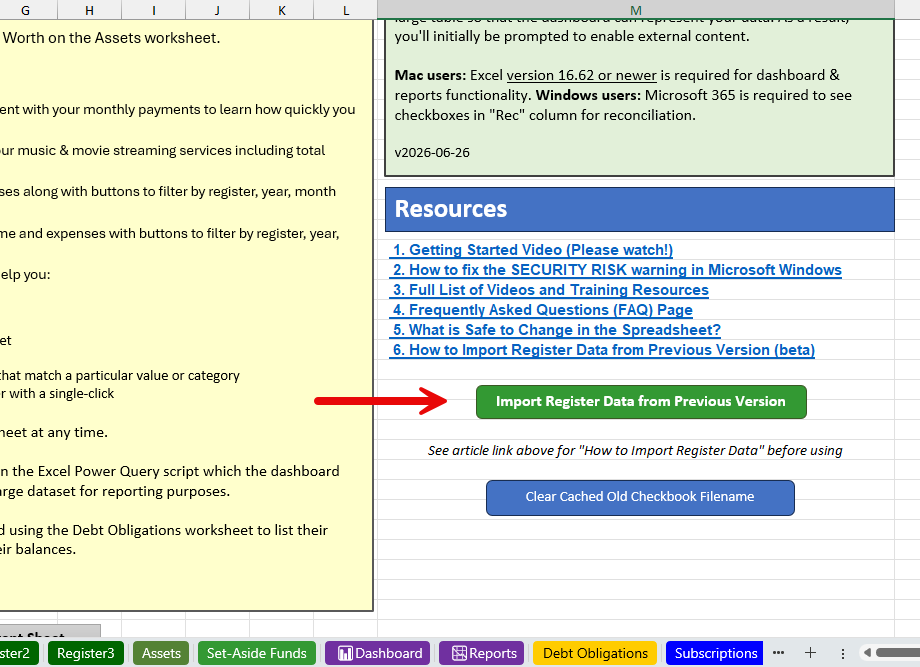
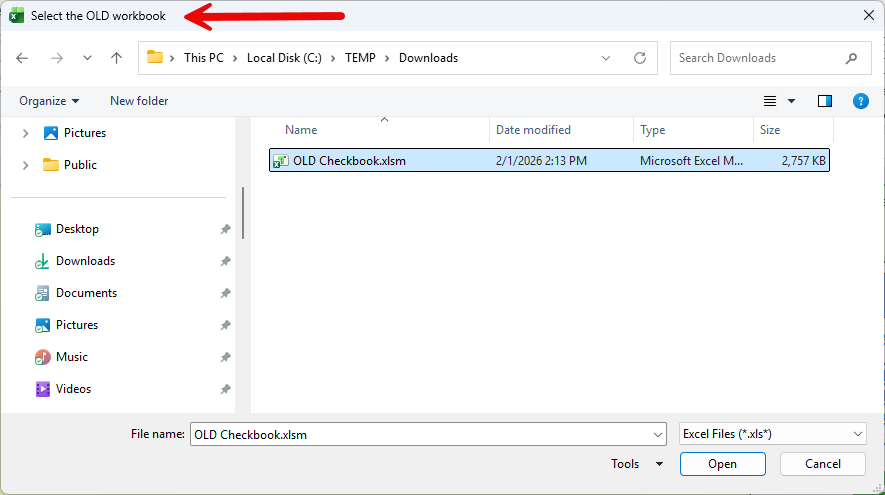
When you click that green button, you will be prompted to choose your current (old) workbook that has your current checkbook data.
Next, the macro will ask you to enter a number (1 – 12) that corresponds to the register that you want to copy into the new checkbook spreadsheet.
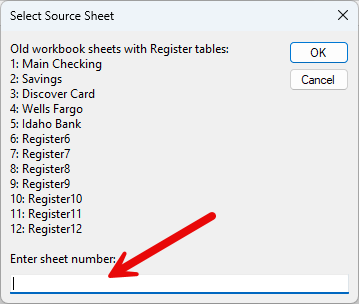
Next, you will be asked to enter a number (1 – 12) for the destination register. Pick an unused register worksheet from the list by entering a number in the box provided, and click OK.

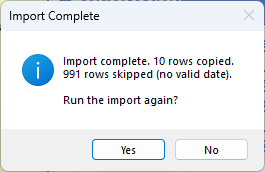
The copy process will begin with status information displayed in the bottom-left corner of the Excel window. Depending on the number of transactions, this process will typically take anywhere from several seconds to a few minutes to complete. Once done, you’ll see a message like the one below which prompts you to run again if desired.
Note: If you accidentally choose the wrong checkbook file as your source to copy from, the blue button that is labeled “Clear cached old checkbook filename” is the quick fix so that when you click the green button to start the import process, you can correctly choose the appropriate source checkbook file.
Discover more from Excel Checkbook
Subscribe to get the latest posts sent to your email.