Reconciling your bank account with a monthly statement can often be challenging and frustrating! After entering the start date and end date on the reconcile worksheet (example below), if the withdrawals and/or deposits fail to match with your bank statement, here are some common issues that users have encountered.
Common issue #1 – Incorrect dates or mismatched dates on transactions
A common issue regards having a different date or the wrong date for transactions in your spreadsheet vs. the bank statement. For example, perhaps you entered a transaction with a date of 06/30/2024 but your bank posted it on 07/01/2024 and thus it is outside of the statement date range (assuming the statement period is 06/01/24 – 06/30/24).
Another issue is a mistyped date. For example:
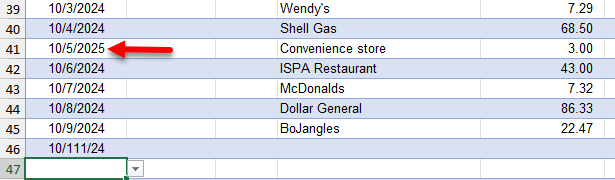
It’s easy to overlook that the 3rd entry above was entered as 2025 instead of 2024, which means it wouldn’t be in the correct date range.
TIP: It’s a good idea to re-sort your transactions on the date column (oldest to newest) before reviewing each transaction in the register. This will help ensure that you’re seeing all entries in the correct date order.
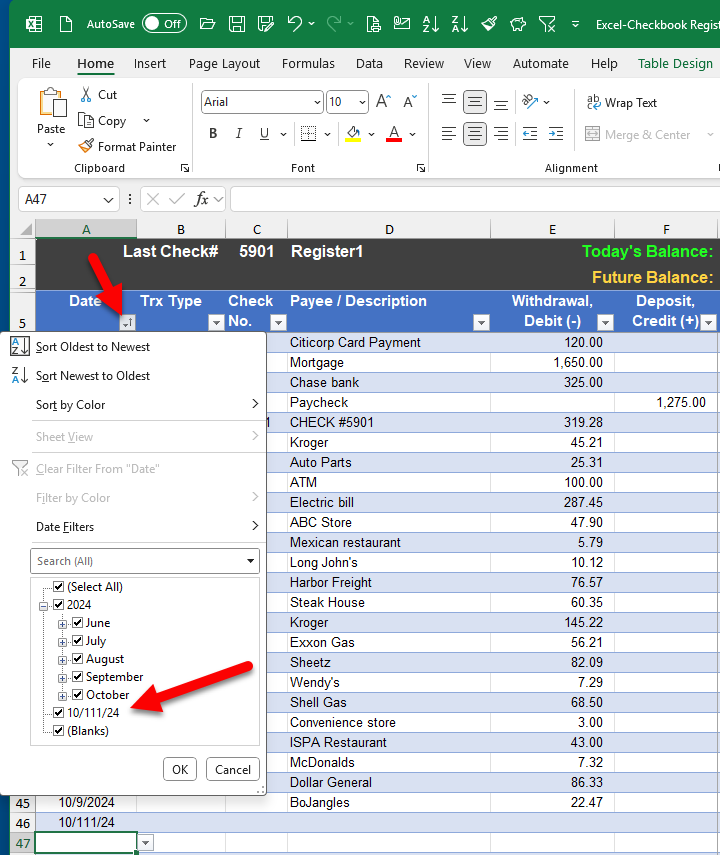
Similarly, it can be easy to mistype a date entirely such that it’s not a date at all! Did you notice that last date in the screenshot above? It was entered as Oct 111, 2024 which is certainly an invalid date. One trick to help find invalid dates is to click the filter button on the date column. In the screenshot below, that bad date will stick out like a sore thumb.
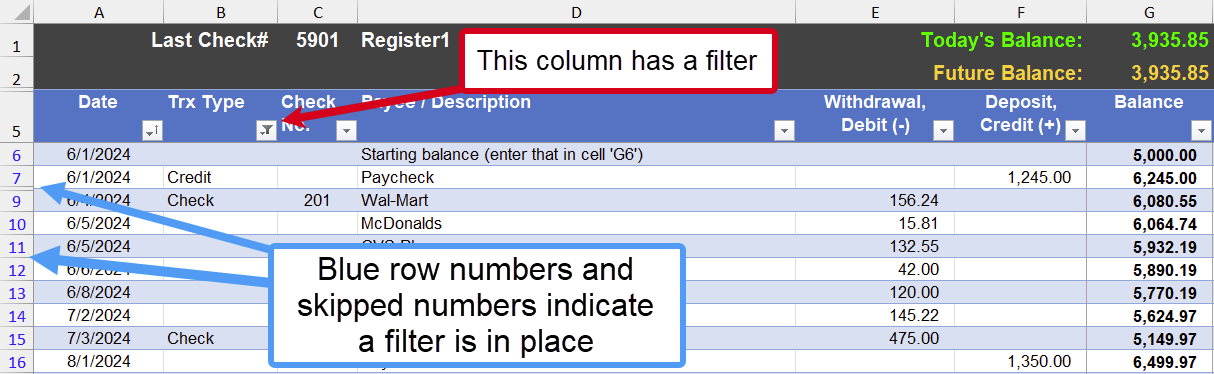
Common issue #2 – A filter is active which is hiding rows
Another issue I’ve seen is when you have activated a filter on one of the columns, which will then hide rows, making it very difficult (or impossible!) to reconcile all of your transactions with your bank statement. How do you know if an Excel filter is active? The row-numbers will be blue instead of black, and you’ll likely notice that some row numbers appear to be skipped like in this example. You’ll need to look for the column heading that has a filter indicator, and clear (turn off) that filter.
Common issue #3 – Uncleared checks, or checks not recognized, and/or interest deposits
Uncleared checks: Lastly, if you write a lot of checks, sometimes a check doesn’t get cleared and thus it won’t be on your bank statement but you might have recorded it in your checkbook register. When reviewing your register, just make sure that any uncleared checks are not marked as reconciled.
For a walk-thru on using the reconciliation features in the Excel checkbook, please see the following video which was updated in April 2026.