Building on years of work, I’m pleased to release an Excel Checkbook Register template that is targeted for small business and can be suitable as a Quickbooks replacement if your needs are not complicated.
In a hurry and want the spreadsheet template right away? Click here.
System Requirements / Compatibility Notes: You must already have the Microsoft Excel program on a Mac or Windows PC. This Excel template is compatible with Excel 2019 or higher (Windows). It is not compatible with the free Excel online (web) version, nor Google sheets, LibreOffice, OpenOffice, or any other office clone. For Mac users, you will need Microsoft 2021 or newer in order for the dashboard to work as ‘power query’ is not available in older versions of Excel for the Mac. If needed, the latest version of Microsoft Office is available for $99.99/year (or $9.99/month) with the first month free, or as a one-time purchase (no subscription).
Tip to save money: Microsoft has a discount program that offers 30% off of Microsoft 365 for many employees, teachers and current/past military.
A favorite computer magazine website of mine offers Microsoft Office 2021 (lifetime license) for a great price, if needed!
Summary of Features of Excel Checkbook for Small Business
- Manage up to 15 different bank accounts (checking, savings, credit cards)
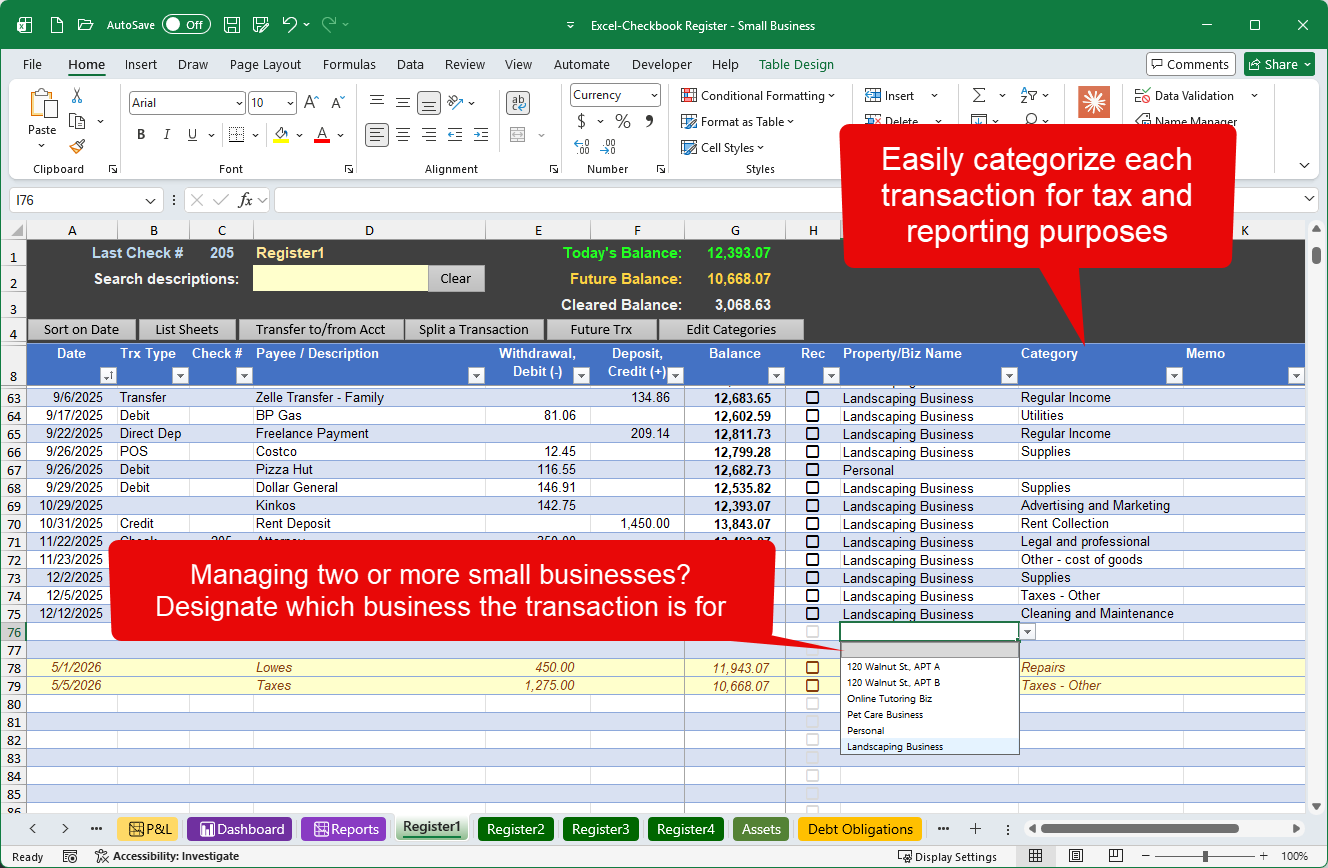
- Easily categorize each entry to track spending by category
- Easily specify which business the transaction is for if you use one bank account for multiple businesses
- See a visual reminder at the top of each register with current balance, future balance, and last check number entered
- Easily reconcile your checkbook with your bank statements
- Gain the ability to quickly post recurring transactions and deposits to your register with a single click
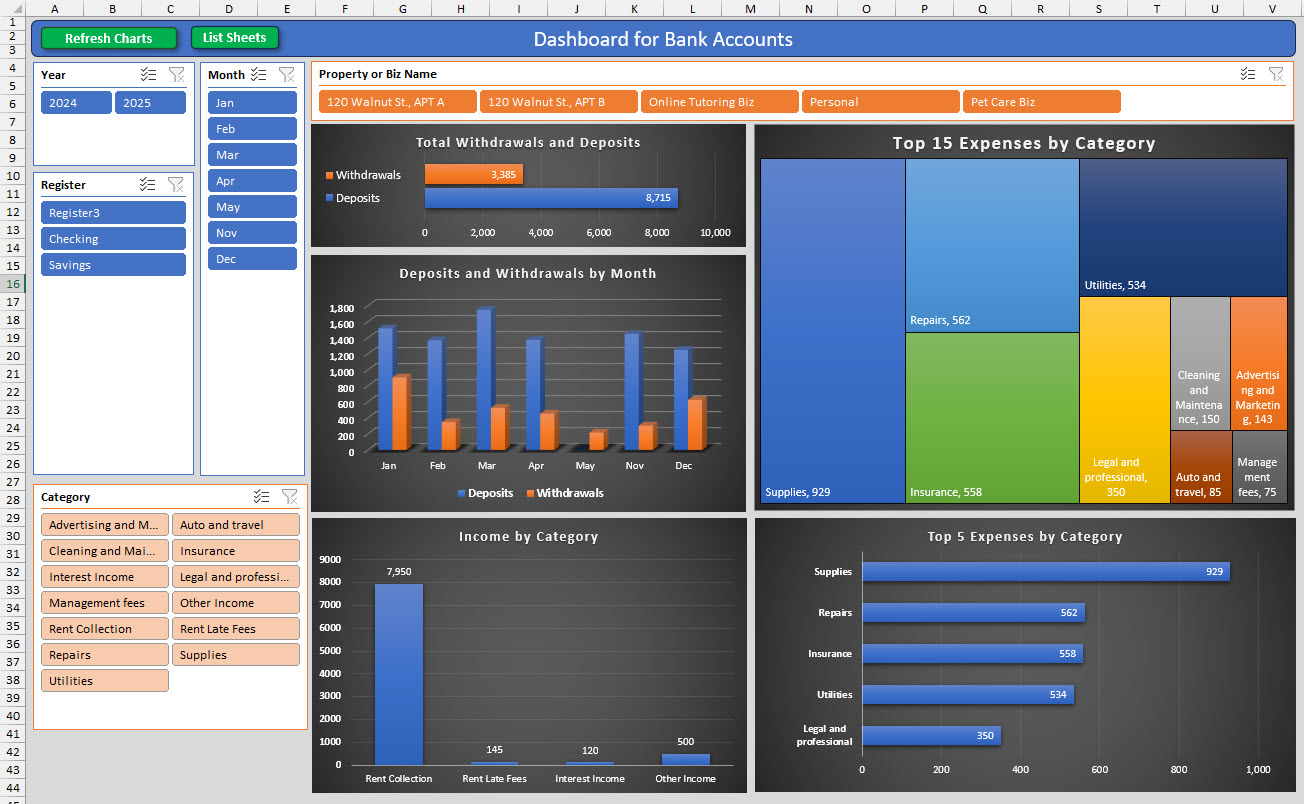
- View your spending with a dashboard which displays charts for deposits & withdrawals by category and sub-category, with buttons to filter your data by year, month, register and/or category
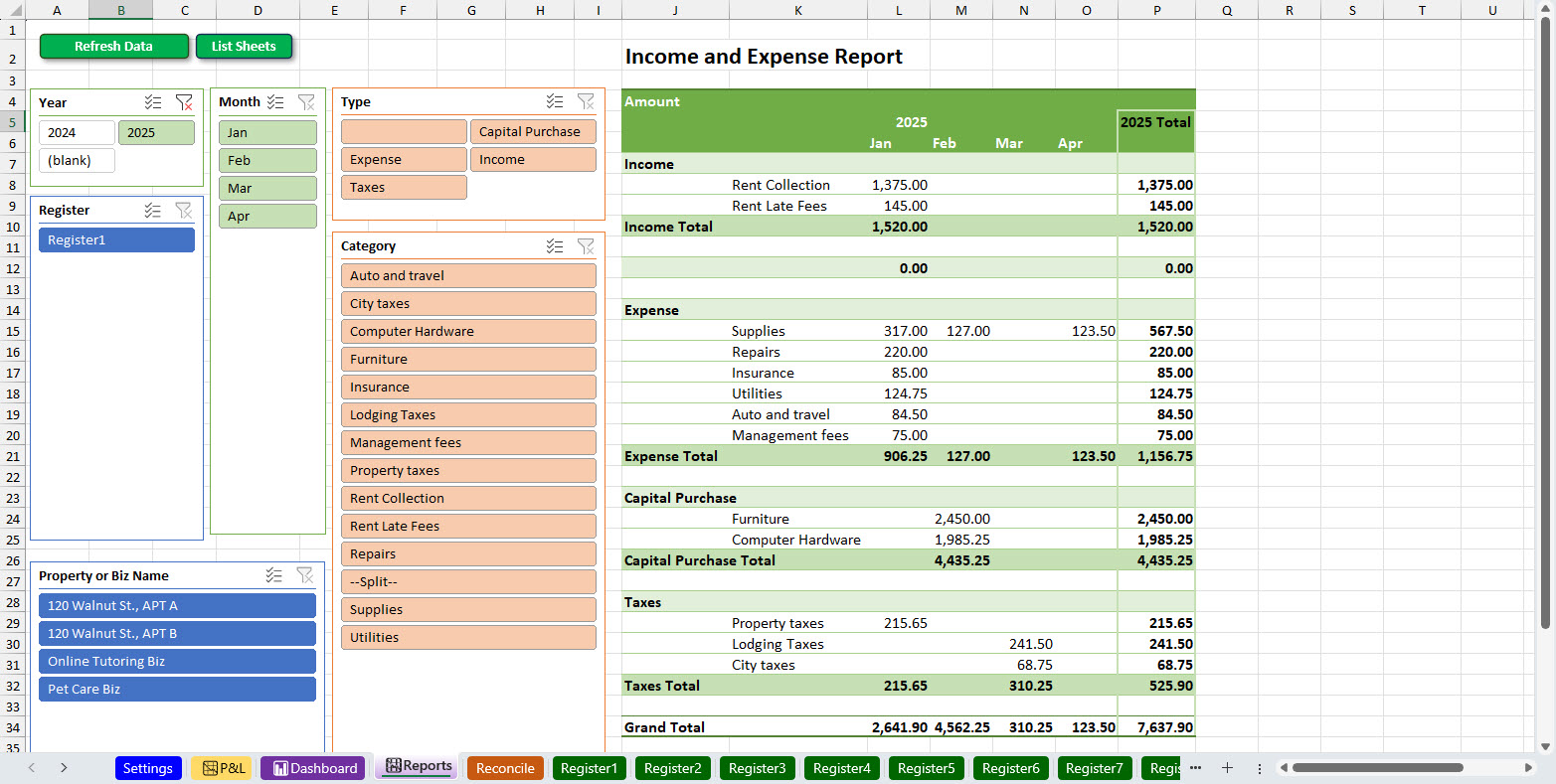
- View your spending with a text-based report, suitable for printing, which also features convenient buttons (slicers) to filter your transactions by year, register, category, and business
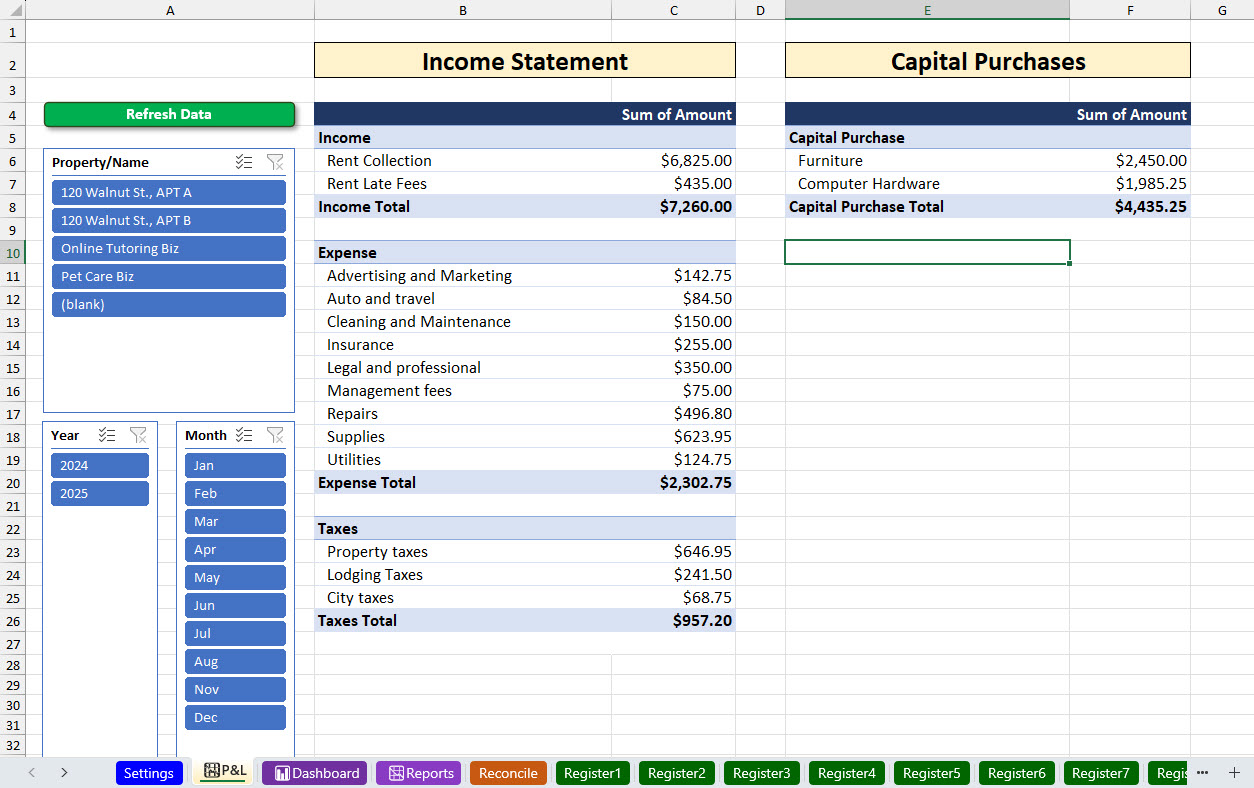
- View a profit & loss statement with filter buttons to choose a specific year and/or business
- Accelerate data entry with convenient drop-downs for Date, Trx Type, as well as a drop-down list of frequent Payee/Descriptions which will auto-populate your preferred category when chosen
- Enter recurring future transactions quickly
- Split a transaction across multiple categories for better tracking of spending, especially helpful for large expenses and/or when a transaction should be split across your different businesses
- Enter a transfer transaction (e.g., a withdrawal from checking which deposits to savings) as a single entry to save time.
Up to 15 Registers
You can record transactions for fifteen different bank accounts. Those can be any combination of checking, savings and/or credit card accounts — anything that has transactions with dates and dollar amounts.
Post Future Transactions with a One-Click Button
This feature makes it super quick to post your recurring transactions into your checkbook with a single button click. In other words, you can create a list of expenses that you have every month, and when you want to paste them into your register, you can click a button and all of them will get entered! These can also be separated into groups, in case you only want to post a subset early in the month and a different set when it’s later in the month. Note: a VBA macro is embedded in the template for this feature. Learn more about macros.
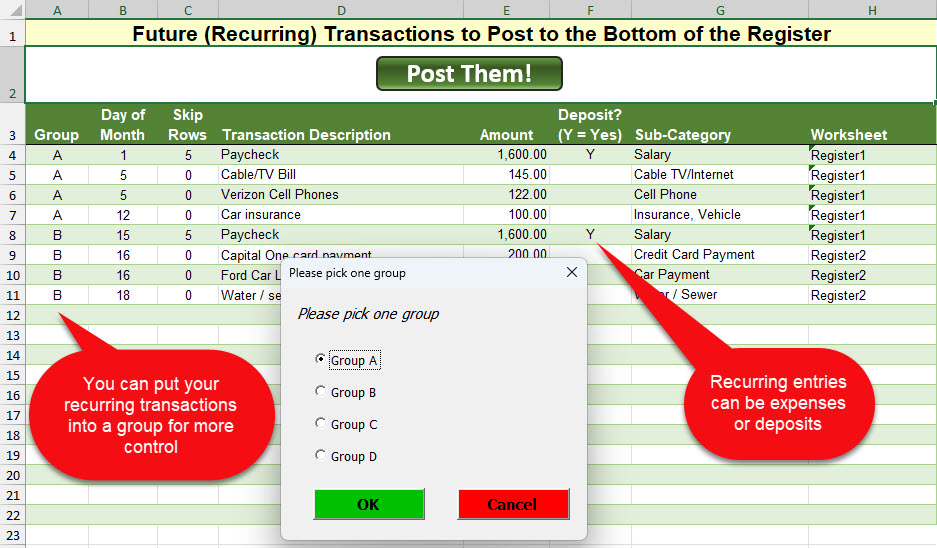
Why is this handy? I like to keep an eye on my bottom line. How much money will I have at the end of the month before I get paid again? By putting in those future expenses, it helps me see how much money I’ll likely have later in the month.
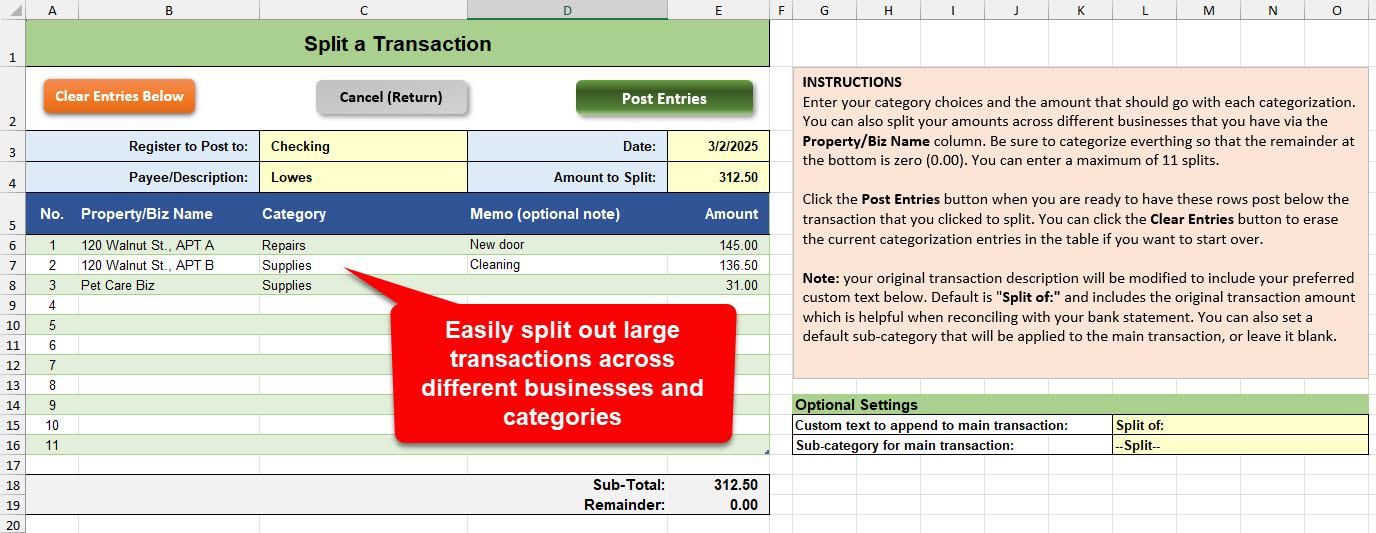
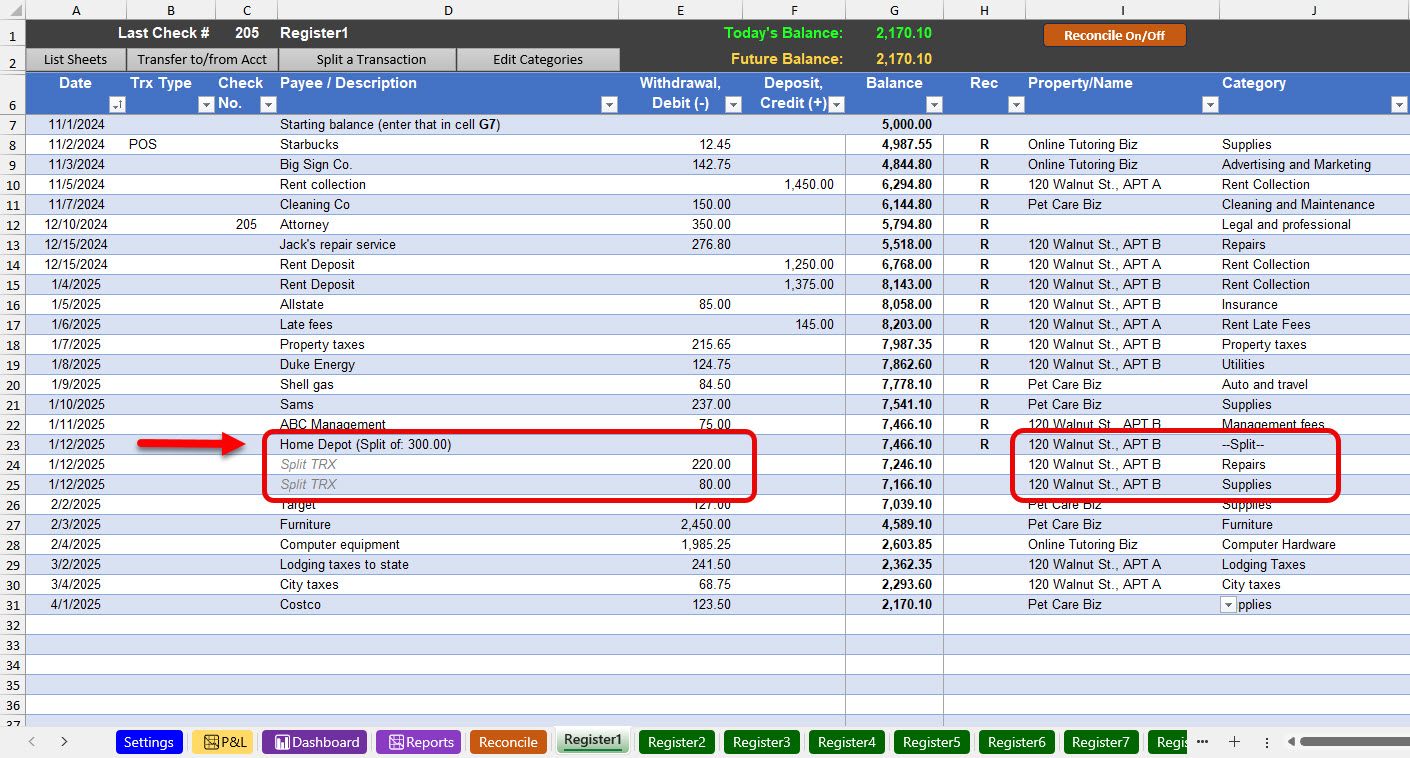
Split a Transaction
For larger expenses or deposits, you can click a button to split out the amounts into different categories for more accurate tracking of your expenses.
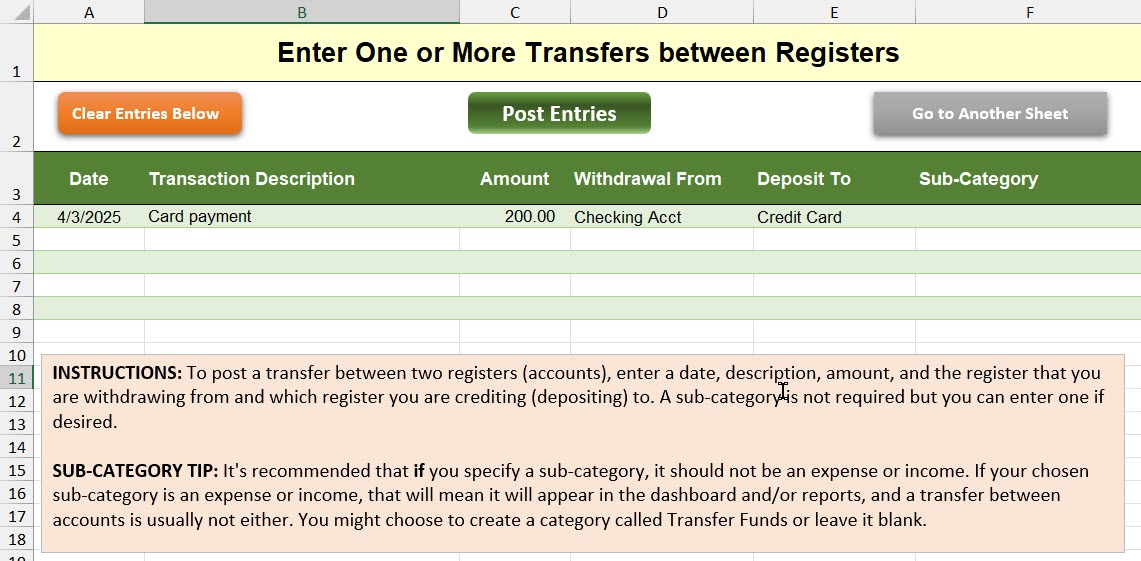
Enter a Transfer Between Two Accounts
If you often move money between two accounts (e.g., from a checking account to a savings account), this feature accelerates the data entry so that you only have to enter one entry and it will create the corresponding entry in the other account.
Reconcile Transactions
If you need to reconcile your transactions against your monthly bank statement, it’s easy to do so. Clicking the button at the top of the register (Reconcile Details) will open a panel of rows where you’ll enter your bank statement’s end date and ending balance. You can review each transaction and mark each one as reconciled, and the screen will keep you updated on how many withdrawals and deposits have not yet cleared.
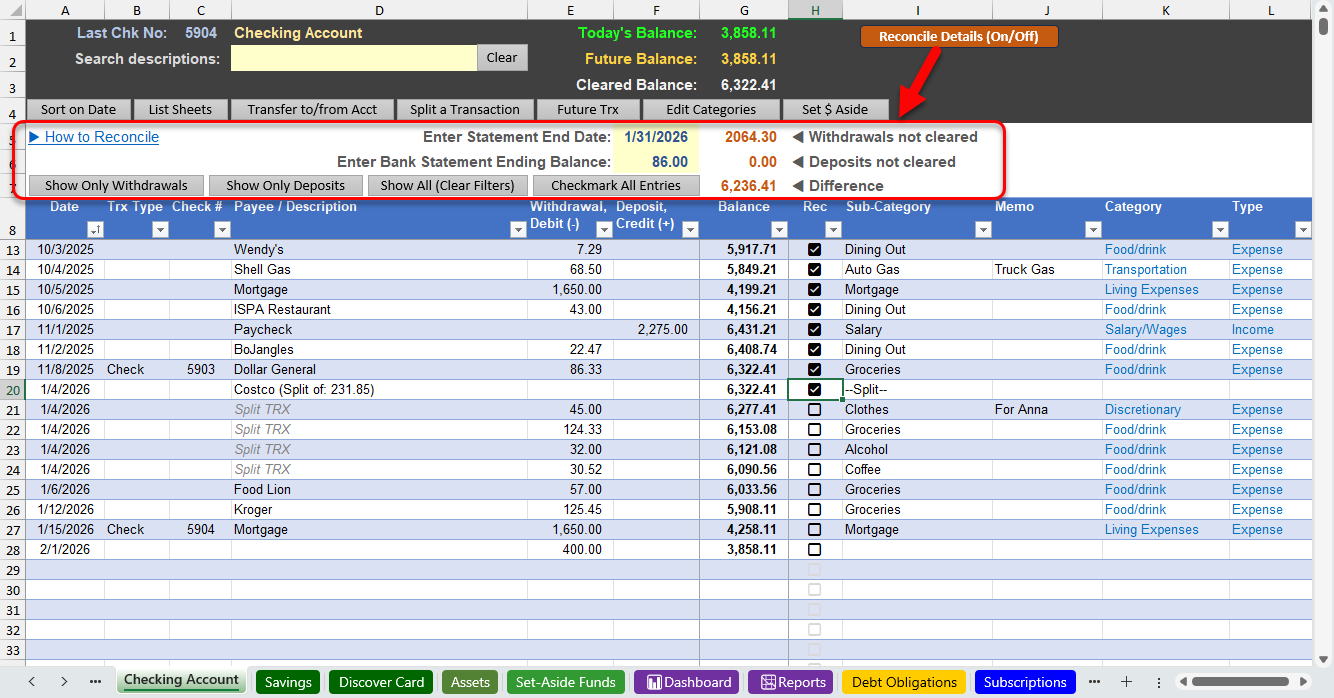
Note: this uses the checkbox feature that is only available in Microsoft 365. However, older versions of Excel will work just fine by putting a single letter (e.g., R, or c, or X) to mark each entry.
Financial Dashboard
The financial dashboard consolidates all of your bank accounts to a single dashboard. There are filter buttons to easily focus in on a particular year, month, category and/or to focus on a specific bank account and/or a specific business. Note: a VBA macro is embedded in the template for this feature. Learn more about macros.
Financial Report/Statement
View a text-based report with filter buttons to see expenses and credits by year, month, category, bank account, and a specific business.
Profit & Loss Statement (P&L)
Easily view a profit and loss statement with options to see it by year, month and per small business.
Demonstration Video
- View this walk-through video on how to use the checkbook spreadsheet.
- Note: the reconcile feature was updated in April, 2026. See this video.
Click the purchase button to download
Thanks so much for building this tool and making it available so economically - all users (small business or otherwise) can and should benefit from using this tool!
I am struggling with one thing though: I manage several farms for my family. As part of that work we pre-pay anticipated expenses for tax reasons in the year prior to using the service, then sometimes get a refund of unused prepay in the year after that year. For example, I might prepay $5000 for to Midwest Electric in Dec 2024 to cover usage in 2025, then get a refund for $500 in early 2026 if (say) we only used $4500 of power in 2025.
I enter those as two transactions, both to Midwest Electric and categorized as Expense, but one with a $5000 debit and the other with a $500 credit. I expected the spreadsheet to give me the net of $4500, but instead it gave me $5500 ... seems like the "expense" entry dominates and the absolute values get added together rather than SUM(Debits) - SUM(Credits).
I got around it by creating a new "Return of Prepay" entry that shows as Income, but then I largely lose the connection to Midwest Electric (and similarly for all the other providers I use).
Is that expected behavior, or am I doing something wrong?
Also, is there somewhere else I should be asking these sorts of questions?
Thank you!!
I am enjoying the updated spreadsheet!
I've been trying to find something simple yet powerful enough to run a smaller farming operation and found this very easy to use and even reports on expenses. I tried using QuickBooks but can't really afford that and its way too much for a small operation.
I'd love to see a Balance Sheet but thanks for a fantastic product!
Hey there, We just downloaded your excel sheet. I can't tell you how much I love it. Its amazing. We have a pretty big sized business that we use quickbooks for. And we found this to use for our rental properties! Its amazing and I love it. My question is.... So the tenants pay a security deposit. How would I categorize that in this system? I know its not income... Its not really an expense. Help!
Thank you for the note! I would propose using a separate register worksheet to track those security deposits. And you might consider either not categorizing them at all, or add a new entry in the category list for Security Deposit but don't give it a Category Type.
If I could reach through this internet connection I’d kiss you right on the lips! I have been looking desperately for an easy to use checkbook program for a small group that wouldn’t break the bank AND that a novice Excel user could relate to. I did try to get fancy one time and wiped out part of my page, but with a small nudge from my Excel expert kids, everything is now back to rights.
I absolutely recommend this product, especially for those old folks like me that need an easy to use, but very useful, checking accounting program. 5 Stars!
Reviews
 Small Business/Farming Business
I’ve been trying to find something simple yet powerful enough to run a smaller farming operation and found this very easy to use and even reports on expenses. I tried using QuickBooks but can’t really afford that and its way too much for a small operation.
I’d love to see a Balance Sheet but thanks for a fantastic product!
Write a Review
Submit your review | |
I've been trying to find something simple yet powerful enough to run a smaller farming operation and found this very easy to use and even reports on expenses. I tried using QuickBooks but can't really afford that and its way too much for a small operation.
I'd love to see a Balance Sheet but thanks for a fantastic product!
Hey there, We just downloaded your excel sheet. I can't tell you how much I love it. Its amazing. We have a pretty big sized business that we use quickbooks for. And we found this to use for our rental properties! Its amazing and I love it. My question is.... So the tenants pay a security deposit. How would I categorize that in this system? I know its not income... Its not really an expense. Help!
Thank you for the note! I would propose using a separate register worksheet to track those security deposits. And you might consider either not categorizing them at all, or add a new entry in the category list for Security Deposit but don't give it a Category Type.
Discover more from Excel Checkbook
Subscribe to get the latest posts sent to your email.