Many customers have asked about the best way to post their payroll deposit to a register so that it includes taxes and deductions.
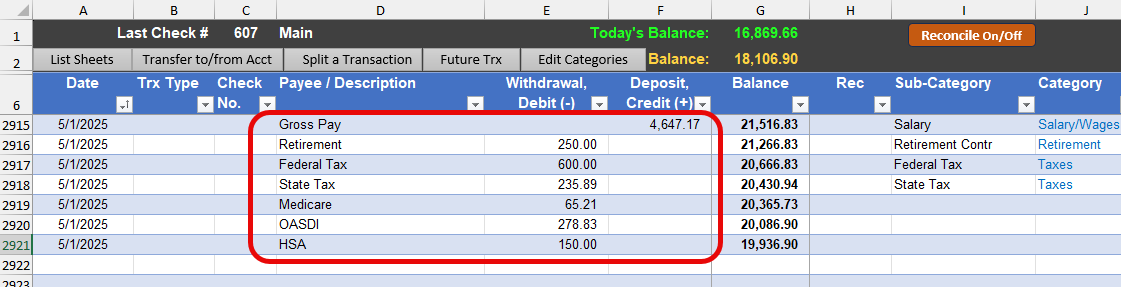
If I wanted to do this personally in my own checkbook spreadsheet, I would post my gross pay amount as a deposit, and then I would list all of the deductions as an expense (withdrawal) in the checking account along with my desired categories for each. See a fake/sample screenshot below.
With that arrangement, I could easily see those expense totals in the Dashboard or Reports area of the checkbook, which would be interesting to view over time. The downside is that during any monthly bank statement reconciliation (if you do those), you’d have to ignore that those entries don’t match up with your bank statement since instead you just have your Net Pay show on your bank statement.
The other thing that would make this process easier is my feature called Future Transactions. If your paycheck is pretty similar each pay period, you could have all of those entries pre-populated on the Future Transaction sheet, and with a single-button-click, they could all be added to your register whenever you have a pay day.
TIP: If you’re comfortable with making a copy of a worksheet, you can safely copy the “Future Trx” worksheet and give it a new name (e.g., Paycheck) and then just put your paycheck related items on that sheet. You could mark them all with the same group (e.g., A) and then whenever you want to post your paycheck, just confirm the date is right and click POST!
Discover more from Excel Checkbook
Subscribe to get the latest posts sent to your email.